displays a signal.
1. In the Getting Started window, click New to display the New dialog
box.
2. From the Create New list, select VI»From Template»Tutorial
(Getting Started)»Generate, Analyze, and Display. This template
VI simulates a signal and analyzes it for its root mean square (RMS)
value.
3. Click the OK button or double-click the name of the template to create
a VI from the template.
4. If the Context Help window is not visible, press the <Ctrl-H> keys to
display the window. (Mac OS X) Press the <Command-Shift-H> keys.
5. Display the block diagram by pressing the <Ctrl-E> keys.
6. Move the cursor over the Amplitude and Level Measurements Express
VI, shown at left.
The Context Help window displays information about the behavior of
the Express VI.
Keep the Context Help window open. It will provide useful
information as you complete the rest of this exercise.
7. Display the front panel and remove the RMS indicator, shown at left.
You will not use the RMS functionality of the Amplitude and Level
Measurements Express VI for this exercise. However, you can use the
Generate, Analyze, and Display template VI with the RMS
functionality in the future to reduce development time.
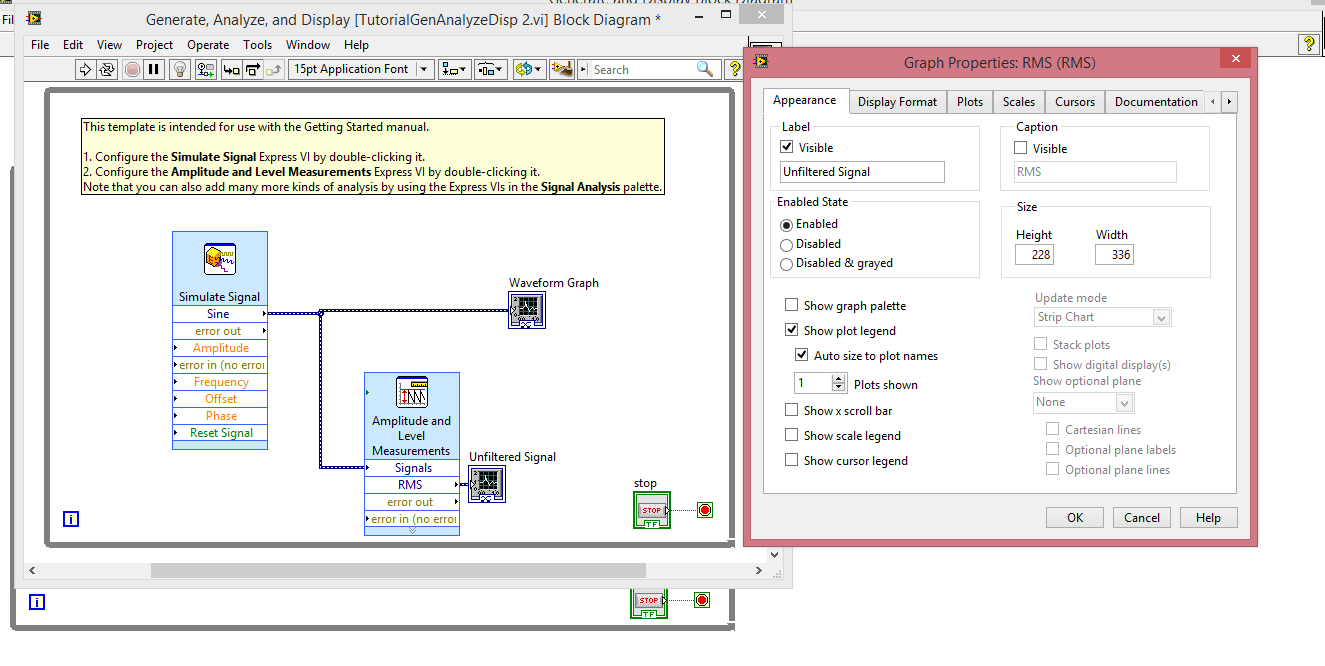
8. Display the block diagram and remove any broken wires that result
from removing the RMS indicator. To remove all broken wires from
the block diagram, you can press the <Ctrl-B> keys.
9. Then return to the front panel window and right-click the waveform
graph indicator. Select Properties from the shortcut menu. The Graph
Properties dialog box appears.
10. On the Appearance page, place a checkmark in the Visible checkbox
in the Label section and enter Unfiltered Signal in the text box.
11. Click the OK button to save the configuration and close the Graph
Properties dialog box.
12. Run the VI.
The signal appears in the graph.
13. Click the STOP button to stop the VI.

No comments:
Post a Comment